
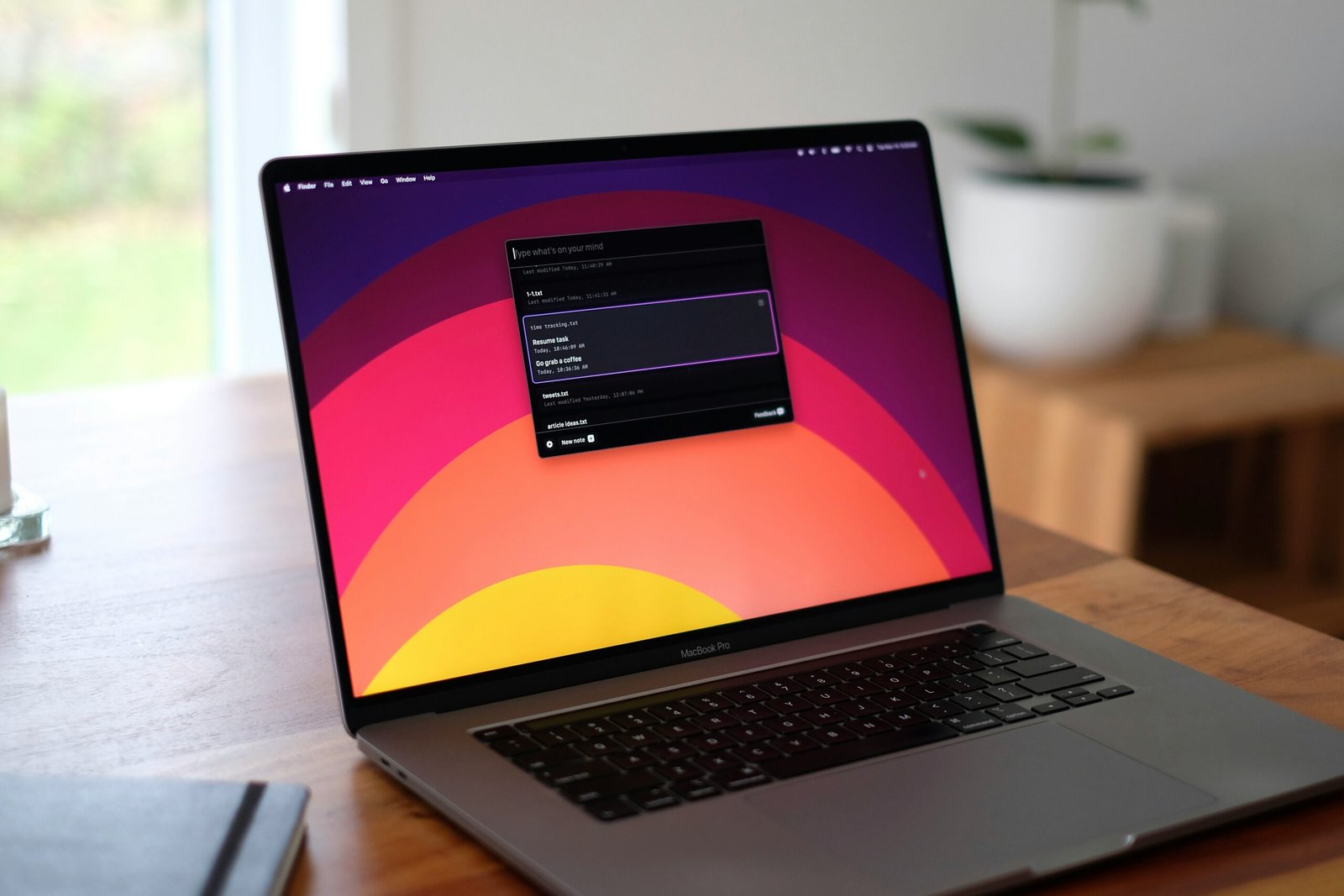
A slow laptop is frustrating. Apps take ages to open, the fan roars at the slightest task and simple jobs like switching between tabs feel like wading through treacle. The good news is that many slowdowns are fixable without buying a new machine. In many cases, a handful of settings tweaks, a bit of housekeeping and the right hardware upgrade can make an older laptop feel noticeably quicker.
This guide gives you 12 practical tips for Windows and macOS, explained in plain English. Menu names and options differ between operating system versions, so if something looks slightly different on your device, check your manufacturer’s or Microsoft’s or Apple’s official support pages. Results also vary, and no single trick works for every laptop.
First, Figure Out What Is Slowing You Down
Before changing anything, spend a couple of minutes diagnosing the problem. Different causes call for different fixes.
On Windows
Open Task Manager (press Ctrl + Shift + Esc) and look at the Processes tab. Check which apps use the most CPU, memory and disk. If memory is nearly full, you may need to close programmes or add RAM. If disk usage sits near 100 per cent, storage may be the bottleneck.
On macOS
Open Activity Monitor (in Applications > Utilities). Check the CPU, Memory and Disk tabs. The Memory tab’s pressure graph shows whether your Mac is struggling for memory: green is healthy, while yellow or red suggests strain.
Common causes of slowdowns
| Symptom | Likely cause |
|---|---|
| Slow startup | Too many startup programmes, or an old hard drive |
| Everything slows with many tabs open | Not enough RAM |
| Constant disk activity | Old hard drive, nearly full storage or background indexing |
| Fans loud and laptop hot | Dust, heavy background tasks or poor ventilation |
| Slow after an update | Background processes finishing, or a need for a restart |
| Browser feels sluggish | Too many extensions or tabs |
| Short battery life and slow speeds | Power-saving mode or an ageing battery |
Tip 1: Restart Your Laptop Regularly
It sounds basic, but restarting clears temporary files from memory, ends stuck processes and applies pending updates. If you leave your laptop in sleep mode for weeks, performance can degrade.
Aim to restart at least once a week. On Windows, choose Restart instead of Shut down, since a standard shutdown on some versions uses a hybrid mode that does not fully reset the system.
Tip 2: Install Updates for Your System and Apps
Updates often include performance improvements and bug fixes, as well as security patches.
- Windows: go to Settings > Windows Update and install anything pending. Also check driver updates through Windows Update or the laptop manufacturer’s support site.
- macOS: go to System Settings > General > Software Update.
Update your apps and browser too. Outdated software can run slower and may contain security vulnerabilities. Make sure you have a backup before major operating system upgrades.
Tip 3: Reduce Startup Programmes
Many apps launch automatically when you log in, even if you rarely use them. This slows boot time and eats memory.
- Windows: open Task Manager, go to the Startup apps tab and disable non-essential items. Do not disable anything you do not recognise without checking first, as some are security or driver tools.
- macOS: go to System Settings > General > Login Items and remove apps you do not need at startup. Also review the “Allow in the Background” list.
Tip 4: Free Up Storage Space
A laptop with very little free storage can slow down, because the system needs room for temporary files, virtual memory and updates. As a rough guide, try to keep a healthy amount of free space, such as 10 to 20 per cent of the drive.
How to clear space
- Windows: use Settings > System > Storage and Storage Sense to remove temporary files. Uninstall apps you no longer use via Settings > Apps.
- macOS: go to System Settings > General > Storage to see what is taking up space and use the recommendations. Empty the Bin, delete old downloads and remove unused apps.
- Move large photo, video and project files to an external drive or cloud storage.
- Remove duplicate files and old installers.
Be careful with third-party “cleaner” apps. Many are unnecessary and some are misleading or harmful. The built-in tools are generally enough.
Tip 5: Close Unnecessary Apps and Browser Tabs
Each open app and tab uses memory, and browsers are among the biggest consumers. Having dozens of tabs open can slow any laptop, particularly one with 8 GB of RAM or less.
- Close apps you are not using.
- Use your browser’s built-in memory-saving or tab-sleeping features if available.
- Bookmark pages for later instead of leaving them open.
- Use the browser’s task manager to see which tabs or extensions are hogging resources.
Tip 6: Remove Heavy Browser Extensions
Extensions are convenient but can slow down browsing and affect privacy. Review your list and remove anything you do not use regularly. Keep only extensions from reputable developers, and check their permissions. Clearing the browser cache can occasionally help with a misbehaving site, though it is not a cure-all.
Tip 7: Scan for Malware and Unwanted Software
Malware, adware and unwanted programs can consume resources and cause slowdowns.
- Windows: run a full scan with Microsoft Defender (in Windows Security). You can also use a reputable second-opinion scanner if you suspect an infection.
- macOS: Macs have built-in protections, but you can still pick up adware. Review installed apps and browser extensions, and remove anything suspicious. If you suspect an infection, consider a well-regarded on-demand scanner.
Download software only from official sources, and be wary of unexpected pop-ups claiming your computer is infected, which are often scams.
Tip 8: Adjust Power and Performance Settings
Power settings can limit performance to save battery.
- Windows: go to Settings > System > Power & battery and check the power mode. Choose a balanced or best-performance mode when plugged in, if available. Be aware that this may reduce battery life and increase heat.
- macOS: on Apple silicon Macs, you can check Battery settings for Low Power Mode, which may reduce performance. Turn it off if you want full speed and you are plugged in.
Keep in mind that high-performance settings generate more heat and fan noise, so use them when you need them.
Tip 9: Reduce Visual Effects
Animations and transparency effects look nice but use resources. On older or lower-spec laptops, turning them down can make the interface feel snappier.
- Windows: go to Settings > Accessibility > Visual effects and turn off transparency and animation effects. You can also search for “Adjust the appearance and performance of Windows” for more options.
- macOS: go to System Settings > Accessibility > Display and enable Reduce transparency and Reduce motion.
The effect is modest on newer machines but can help on older models.
Tip 10: Clean Out Dust and Check Cooling
Heat is a major cause of slowdown. When a laptop gets too hot, the processor may reduce its speed to protect itself, a behaviour called thermal throttling.
- Use your laptop on a hard, flat surface, not a bed or sofa, which blocks vents.
- Gently clean the vents with compressed air, holding the can upright and using short bursts.
- If you are comfortable and your warranty allows, have the fans and heat sinks cleaned. For many modern laptops, it is safer to take them to a qualified technician.
- Consider a laptop stand or cooling pad if you use demanding apps.
Opening a laptop can void the warranty or damage components, so check your manufacturer’s guidance first.
Tip 11: Upgrade Your Hardware (Where Possible)
If software tweaks are not enough, hardware upgrades can deliver the biggest improvement. What is possible depends on your model: many modern thin laptops, especially MacBooks, have soldered memory and storage that cannot be upgraded.
Switch to a solid-state drive (SSD)
If your laptop still has a traditional hard disk drive (HDD), replacing it with an SSD is often the single most effective upgrade. Boot times, app launches and file operations can become dramatically faster. Back up your data first and check which drive types and sizes your laptop supports.
Add more RAM
If your system regularly runs out of memory, adding RAM can help, particularly if you multitask heavily. Check whether your laptop’s memory is upgradable, what type it uses and its maximum capacity. Many people find 8 GB workable for basic use, while 16 GB gives more comfortable headroom for heavier multitasking, though requirements vary.
Replace an ageing battery
A worn battery can lead to performance throttling on some devices, as well as poor battery life. If your battery health is poor, a replacement may help, ideally through the manufacturer or a reputable repair service.
Is it worth it?
If your laptop is very old, an upgrade may not be cost-effective. Compare the cost of upgrades against the price of a new machine, and consider how long the device will keep receiving security updates.
Tip 12: Reset or Reinstall the Operating System as a Last Resort
If your laptop remains slow after trying everything else, a clean slate may help. Resetting removes accumulated clutter, problematic software and settings.
- Windows: go to Settings > System > Recovery and choose Reset this PC. You can usually choose to keep your files or remove everything.
- macOS: go to System Settings > General > Transfer or Reset, then choose Erase All Content and Settings on supported Macs, or use macOS Recovery to reinstall.
Back up everything first. Use an external drive or cloud backup, and make sure you have your licences and passwords. After resetting, reinstall only the apps you truly need.
Windows vs macOS: What to Prioritise
| Task | Windows | macOS |
|---|---|---|
| Check what is slowing you down | Task Manager | Activity Monitor |
| Manage startup items | Task Manager > Startup apps | Login Items |
| Free up space | Storage Sense | Storage settings |
| Update the system | Windows Update | Software Update |
| Hardware upgrades | Often possible on many models | Often limited on newer Macs |
| Built-in protection | Microsoft Defender | Built-in protections |
Habits That Keep Your Laptop Fast
- Restart weekly and install updates promptly.
- Install only software you need, from trusted sources.
- Keep your storage from filling up.
- Use cloud storage or external drives for large files.
- Avoid running multiple security tools that conflict.
- Keep your laptop cool and clean.
- Back up regularly so that fixing problems is less stressful.
When It Is Time to Replace Your Laptop
Sometimes no amount of tuning will help. Consider replacing your laptop if:
- It no longer receives security updates from the manufacturer or operating system vendor.
- It cannot run the software you need.
- Repairs and upgrades would cost nearly as much as a new device.
- The battery and hardware are failing and cannot be replaced economically.
When you do buy new, look at the amount of memory, storage type, expected software support period and repairability, so your next laptop stays quick for longer.
Final Thoughts
You do not need to be a technical expert to make a slow laptop faster. Start by finding out what is causing the slowdown, then work through the simple fixes: restart, update, trim startup programmes, free up storage and manage browser tabs. Check for malware, adjust your power settings and keep the machine clean and cool. If that is not enough, an SSD or extra RAM, where upgradable, can transform an older laptop.
Always back up your data before making major changes, and use official tools and trusted sources instead of miracle “speed booster” apps. With a little care, you can often add years to your laptop’s useful life.